SSD and storage support · Richcom Technology
Plan your storage upgrade with fitting in mind
An SSD or hard disk upgrade starts with the system that will use it. Tell us the computer model, current drive and whether you want additional space or a new system drive. Request an appointment if you need help checking compatibility and arranging installation.
Request an Appointment ↗Your preferred visit time needs confirmation.
- 01Tell us about the fault
Share the model and symptoms in the form below.
- 02Confirm your appointment
Submit a preferred date and time for confirmation.
- 03Approve the quoted work
Charges are quoted after assessment. Work needs your approval.
SSD buying guide · Reviewed 10 October 2026
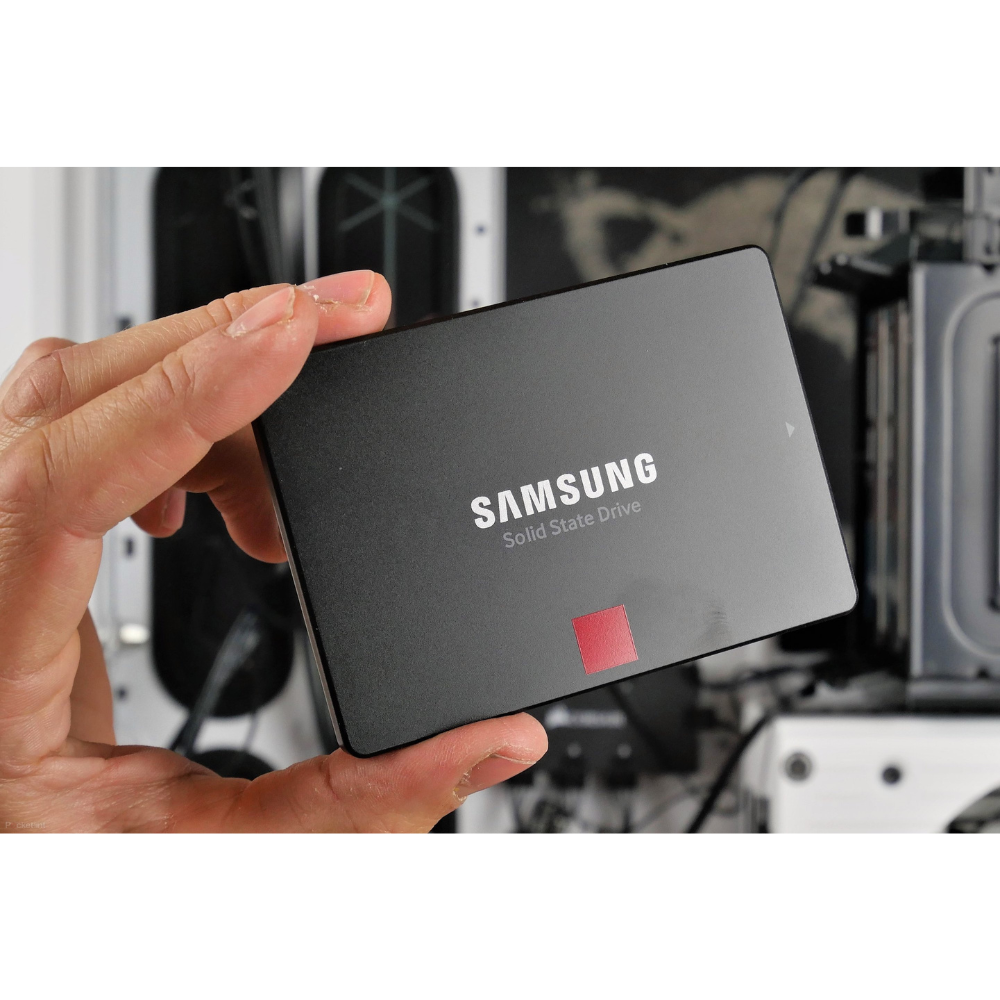
Choose an SSD by checking the interface supported by your computer, the physical drive size, the capacity you need and the drive’s warranty. Capacity alone does not establish compatibility. A 2.5-inch SATA SSD and an M.2 NVMe SSD use different connections.
Which SSD format does my computer support?
| Drive type | What to verify |
|---|---|
| 2.5-inch SATA | SATA data and power connections, drive-bay height and mounting hardware. |
| M.2 SATA | An M.2 slot that supports the SATA protocol, the correct keying and module length. |
| M.2 NVMe | An M.2 slot that supports PCIe/NVMe, the correct module length and system firmware support. |
M.2 describes a form factor. An M.2 slot is not automatically compatible with both SATA and NVMe drives. Check the computer or motherboard manual before ordering.
How much storage should I choose?
Start with the space currently used by your operating system, applications and working files. Allow room for updates and future projects. A 256GB drive can suit a modest installation; 512GB offers more room for everyday files, while 1TB can suit larger collections and projects. Your own storage use is a better guide than the processor tier.
Compare SATA and NVMe prices
Prices are in LKR, checked against published Richcom listings on 10 October 2026. Follow the product links for current prices, availability and complete warranty terms.
| Published SSD | Price (LKR) |
|---|---|
| Lexar (USA) 1TB Ns100 2.5” Sata III SSD | 61,500 |
| Lexar (USA) 512GB Ns100 2.5” Sata III SSD | 35,500 |
| Lexar (USA) 256GB Ns100 2.5” Sata III SSD | 22,000 |
| Lexar (USA) 1TB NM620 M.2 PCIe Gen3x4 NVMe SSD | 55,500 |
| Lexar (USA) 512GB NM620 M.2 PCIe Gen3x4 NVMe SSD | 35,000 |
| Lexar (USA) 256GB NM620 M.2 PCIe Gen3x4 NVMe SSD | 25,500 |
The NS100 listings identify 2.5-inch SATA III drives. The NM620 listings identify M.2 PCIe Gen3 x4 NVMe drives. Choose between them according to the supported interface, then compare capacity and model-specific endurance.
Will an SSD make every task faster?
An SSD can improve storage-dependent tasks such as starting applications and accessing files, especially when moving from a mechanical hard drive. It does not increase processor speed, graphics capability or RAM capacity. There is no single speed multiplier that applies to every computer and task.
What should I confirm before fitting?
Provide the full computer model or motherboard model. Confirm the drive interface, available slot or bay, capacity, warranty, fitting charge and whether the quotation includes migration or a fresh installation. Do not assume those services are included in the drive price.
An SSD is not a backup. Keep an independent copy of important files and confirm any data transfer or operating-system migration requirements before work begins. Manufacturer performance figures are model-specific maximums; actual results depend on the drive, interface and workload.
Further reading
Read our NVMe interface guide for M.2 and PCIe checks, or the SATA SSD comparison for NS100 capacities. Manufacturer compatibility guidance: Crucial’s NVMe upgrade guide.
Explore M.2; NVMe M.2; Portable SSD; SATA; SSD prices in Sri Lanka; The step-by-step guide on how to install a second SSD or HDD on your laptop by removing the DVD writer (7 Easy Steps).
Request an Appointment
storage compatibility and installation
Repair charges will be quoted after assessment. Work begins after your approval. Your preferred visit needs confirmation.